

Send files to Train by email
Email documents to your organisation's knowledge address and Centrus adds them to Train, ready to answer from.
On this page3 sections
Find the card
Open Integrations in the left nav. The heading is Integrations. The subtitle is Connect and manage external services.
Knowledge Email is a card on that grid. The badge is Active. There is nothing to connect.
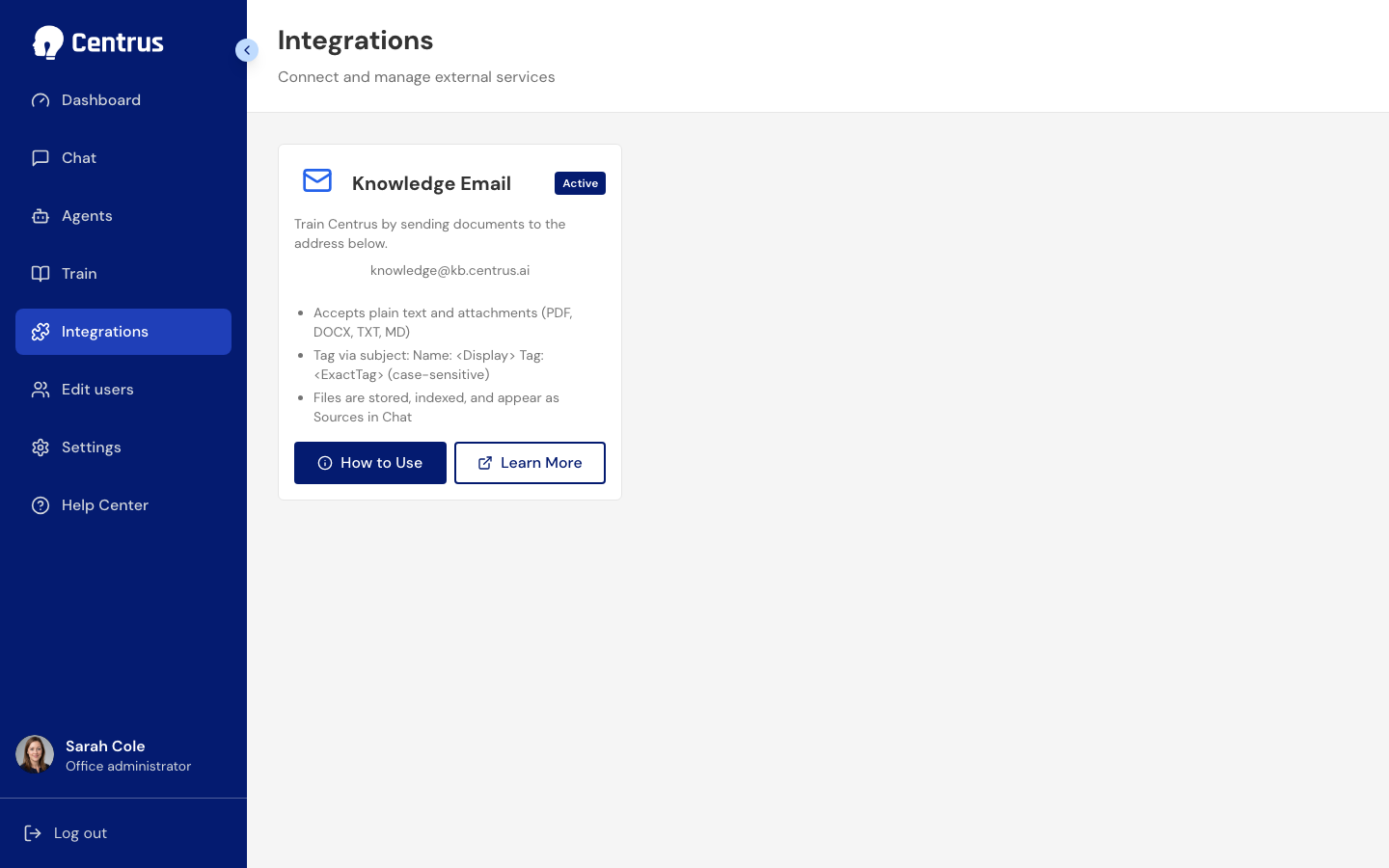
The description is Train Centrus by sending documents to the address below. The address is knowledge@kb.centrus.ai, unless your organisation has a live branded host, in which case it is knowledge@kb. then that host.
On the card itself:
- Accepts plain text and attachments (PDF, DOCX, TXT, MD)
- Tag via subject: Name: <Display> Tag: <ExactTag> (case-sensitive)
- Files are stored, indexed, and appear as Sources in Chat
You need Train access to see this card. Admins have it by default. Anyone else is granted it on their user. See Edit users and roles.
How to Use
How to Use opens How to use Knowledge Email with Centrus, or with the name your organisation has set for the AI.
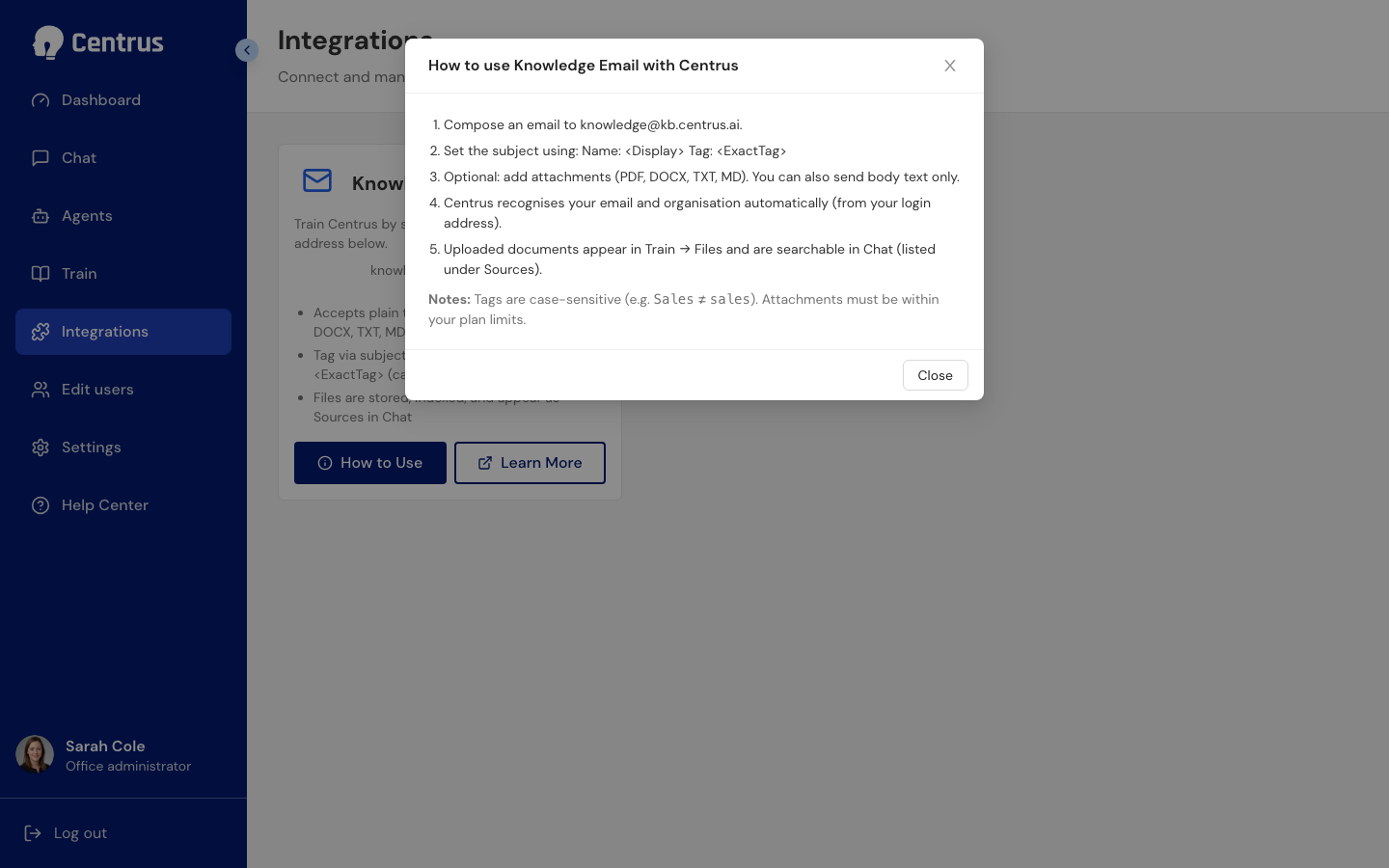
- Compose an email to knowledge@kb.centrus.ai.
- Set the subject using: Name: <Display> Tag: <ExactTag>
- Optional: add attachments (PDF, DOCX, TXT, MD). You can also send body text only.
- Centrus recognises your email and organisation automatically (from your login address).
- Uploaded documents appear in Train → Files and are searchable in Chat (listed under Sources).
Notes: Tags are case-sensitive (e.g. Sales ≠ sales). Attachments must be within your plan limits.
Where files land
The file is stored and indexed like any other source on Train. Put the right tag in the subject so the right people can ask about it. See Upload files and Control who sees what with tags.